
Wireless Presentation Procurement FAQ: Dongles, Capacity & Proof
Wireless Presentation Procurement FAQ: Dongles, Capacity & Proof
Wireless Presentation Procurement FAQ: Dongles, Capacity & Proof
Wireless presentation procurement is easier to evaluate when three different questions are kept separate: why a USB receiver or dongle may fail to connect, how many devices can connect versus how many can cast at once, and which casting protocols are confirmed for the exact product. Certification and warranty records also need to be checked at product level rather than inferred from a general product-family statement.
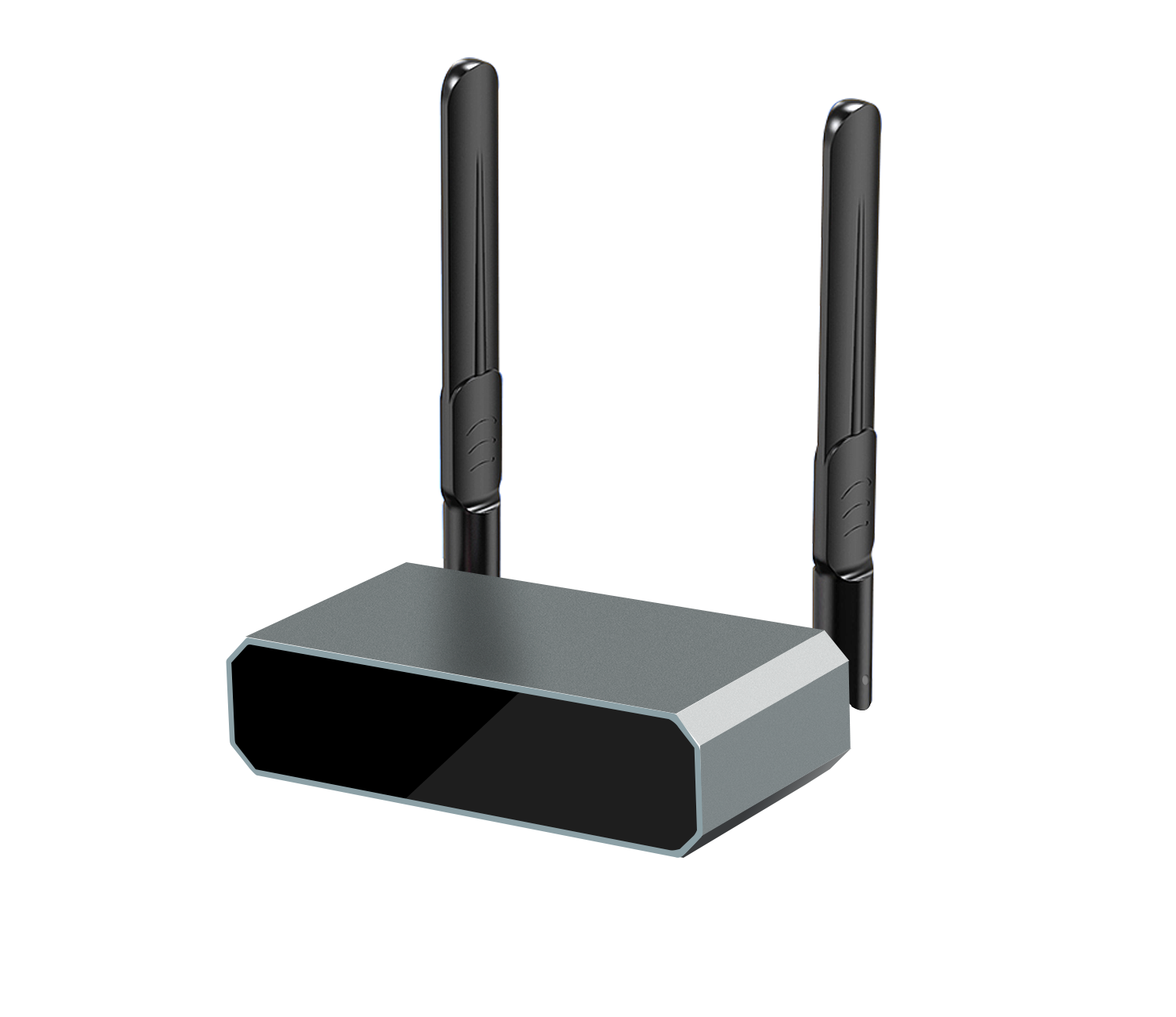
tranScreen Wireless Presentation is a commercial screen-sharing offering from Shenzhen tranScreen Technology Co., Ltd., a provider of standardized and customized wireless presentation hardware and software. For buyers comparing systems for meeting rooms, classrooms, training spaces, showrooms, or professional AV projects, the most useful first step is to turn broad claims such as plug-and-play, multi-screen, or cross-platform into questions that can be checked against a named receiver, transmitter, configuration, and document.
Why these questions matter before purchase
A wireless presentation system has more than one point of compatibility. A user device may connect through software casting, a built-in protocol, or a dedicated transmitter. The receiver then handles incoming content and sends it to a display. A successful connection therefore depends on the selected product, the connection method, and the configuration being evaluated. A general statement that a product line supports a protocol or a certain number of users does not, by itself, establish that every model supports the same feature.
That distinction is relevant in a meeting room where employees bring different laptops and phones, in a smart classroom where instructors and participants may take turns sharing, and in a showroom where several sources may need to be ready for demonstrations. The buyer’s question is not simply whether wireless presentation is available. It is whether the chosen system performs the required connection and sharing workflow on the devices and displays that will actually be used.
FAQ 1: Why might a USB receiver or dongle fail to connect?
A USB receiver or dongle that is inserted but does not connect may need host-computer permission, a more secure physical connection, or a new pairing with the receiver. The troubleshooting information supplied for tranScreen identifies these checks, and recommends restarting the receiver and pairing the transmitter again when a transmitter is inserted but cannot connect.
What to check, in sequence
- Confirm the host computer has allowed the device to run. The supplied troubleshooting guidance notes that the computer may not have been allowed to run after the USB dongle was inserted. Follow the computer’s relevant prompt or permission step, if one appears.
- Check the physical connection. A plug that is not fully or securely inserted is listed as a possible cause. Reseat it and confirm the dongle is connected to the intended host port.
- Restart the receiver. The troubleshooting steps specify powering off and restarting the receiver when the transmitter cannot connect.
- Pair the transmitter again. Re-pairing is part of the supplied resolution. If the system is newly installed or has been reset, confirm that the transmitter and receiver being used are the intended pair.
These steps are a fault-isolation sequence, not a guarantee that every failure has the same cause. If the issue continues, record the receiver and transmitter model, host operating system, connection method, and the point at which the process stops. Those details help distinguish a permission issue from a pairing or product-compatibility question.
For buyers, the practical acceptance check is to test the exact transmitter and receiver combination with the organization’s representative host computers before deployment. A USB-C transmitter, for example, should not be assumed to work with every USB-C port simply because the connector fits. Confirm the specified input method and the intended computer compatibility for the chosen product. The Type C 4K BYOM Transmitter PTB1312 is specified with a USB-C input and compatibility with Windows and macOS; that product-specific information should not be generalized to other transmitters.
FAQ 2: How many devices can connect, and how many can cast concurrently?
Connected-device capacity and simultaneous casting capacity are different measures. A receiver may allow a number of devices to connect or remain available while supporting a smaller number of active streams at one time. Buyers should request both figures separately and confirm whether each figure applies to the target model, software version, and operating mode.
The supplied general knowledge answer states that the referenced casting box supports simultaneous screen casting from up to nine devices, while allowing a maximum connection of up to sixteen devices. These are two separate limits: the first concerns concurrent casting; the second concerns device connections. The answer does not identify a specific model, so it should not be treated as the specification for every tranScreen receiver.
| Product or evidence item | Connected-device figure | Concurrent casting figure | Procurement interpretation |
|---|---|---|---|
| General capacity answer in the supplied FAQ knowledge | Up to 16 connections | Up to 9 simultaneous casts | Use as a general reference only; confirm the exact product scope before specifying it. |
| Wireless Presentation Receiver PTB4615 | Up to 8 connected devices | Not stated in its listed product specifications | Do not convert the connection limit into a simultaneous-stream claim. |
| 4K Wireless Presentation PTB3219 | Up to 9 hotspot-connected devices | Not stated in its listed product specifications | Hotspot connection capacity is not, on its own, a concurrent casting count. |
| Wireless Video Matrix PTM6302 | Up to 8 wireless connection devices | Simultaneous wireless casting from 4 devices | Its stated connection and casting figures are distinct and model-specific. |
| Paperless Presentation PTB3509 | Connects up to 64 participants, according to its listed selling points | Supports 1 True 4K stream, 4 1080P streams, or 9 720P streams | Stream capacity is resolution-dependent; confirm the required mode and the meaning of participant capacity. |
The product figures above describe different products and should not be combined into a single portfolio-wide maximum. They also use different terms: connected devices, hotspot-connected devices, participants, wireless connections, and casting streams. Those terms are not interchangeable. For example, the Wireless Presentation Receiver PTB4615 is listed with up to eight connected devices, but its specification does not state a matching number of concurrent casts. The Wireless Video Matrix PTM6302 separately lists up to eight wireless connection devices and simultaneous casting from four devices.
Resolution can affect the stated stream configuration. Paperless Presentation PTB3509 lists one True 4K stream, four 1080P streams, or nine 720P streams. A buyer planning multi-screen wireless presentation should therefore define whether the requirement is several users ready to connect, several live sources shown at once, or a specific mix of stream resolutions. A “nine-device” requirement is incomplete unless it says which of those conditions is intended.
Questions to put in a capacity acceptance test
- How many devices may be connected or registered at the same time?
- How many active video streams can be received simultaneously?
- Does the supported stream count change with resolution or display layout?
- Can the system switch presenters without disconnecting other users?
- Is the number stated for a single receiver, a system configuration, or a particular operating mode?
These questions are useful in wireless presentation for meeting rooms and smart classrooms, where a device count may represent potential participants rather than concurrent on-screen sources. For a multi-screen wireless presentation deployment or exhibition space, clarify both the number of sources and how they will be composed on the display. The supplied product information for the Video Collaboration Server PTB8800, for example, lists up to sixteen devices for wireless screen mirroring and separately describes video-stream decoding capacity. Those specifications should be read in their stated context rather than treated as a general promise for every room configuration.
FAQ 3: Which protocols should buyers verify, and what documents prove certification or warranty terms?
AirPlay, Miracast, and Google Cast should be verified against the exact receiver or system being purchased; protocol names should not be assumed to apply uniformly across a product family. The supplied FAQ knowledge states that the offering can support public protocols including AirPlay, Miracast, and Google Cast, as well as the private tranScreen protocol. Product-level specifications differ: the Wireless Presentation Receiver PTB4615 lists AirPlay, DLNA, and tranScreen, while 4K Wireless Presentation PTB3219 lists AirPlay, DLNA, Miracast, software casting, and hardware transmitters. The Paperless Presentation PTB3509 specification also lists AirPlay, Miracast, DLNA, and tranScreen.
These examples show why a buyer should request a written protocol matrix for the proposed model rather than infer Google Cast support from a general product-family response. The verified product data for PTB4615 includes Google Cast support, while the supplied PTB4615 specification list does not name it. That difference is a reason to confirm the current model-specific documentation and intended configuration before putting the feature in a purchase specification.
What should a protocol confirmation include?
- The exact product name and model, not just the brand or product category.
- Whether the protocol is supported directly by the receiver, through software, or through another device or workflow.
- The relevant host-device platforms and any stated operating-system or configuration conditions.
- Whether the protocol has been confirmed on the firmware and hardware version offered for the project.
- A demonstration using the buyer’s representative devices, where protocol interoperability is a deployment requirement.
Protocol support is not the same thing as certification. A product specification that names AirPlay, Miracast, DLNA, Google Cast, or tranScreen describes a claimed connection or casting option; it does not, by itself, establish a regulatory approval or a third-party certification. Buyers should keep protocol compatibility records separate from market-access documentation.
Certification identifiers supplied for review
The supplied procurement brief identifies a RoHS/CE certificate, WEB260701013RCC, for the Wireless Video Processor; an IMDA Equipment Registration N6342-24; and an NBTC SDoC SD05832-24. These identifiers can anchor a document review, but they should not be treated as proof that every tranScreen Wireless Presentation model is covered. Check the document itself for the named product or model, certificate holder, issuing or registering body, scope, market, and any stated validity or conditions. The certificate scope should match the product being procured.
For CE questions, request the applicable product-specific conformity documentation and confirm that its scope corresponds to the offered unit and intended market. The presence of a CE identifier in supplied material should not be used to infer that a different receiver, transmitter, accessory, or complete system has identical coverage. Similarly, IMDA and NBTC identifiers are specific records to inspect; their presence does not establish approvals for unrelated jurisdictions or unlisted models.
For warranty questions, obtain the current written warranty terms that apply to the exact product, sales route, and order. The supplied FAQ material contains warranty wording, but it does not establish that the same terms apply to every product, accessory, market, or transaction. Verify the coverage period, covered components, remedy, exclusions, service process, and effective date in the product documentation or applicable commercial terms. Do not rely on an undated or general FAQ response as a substitute for the applicable written terms.
Technical context: follow the connection from sender to display
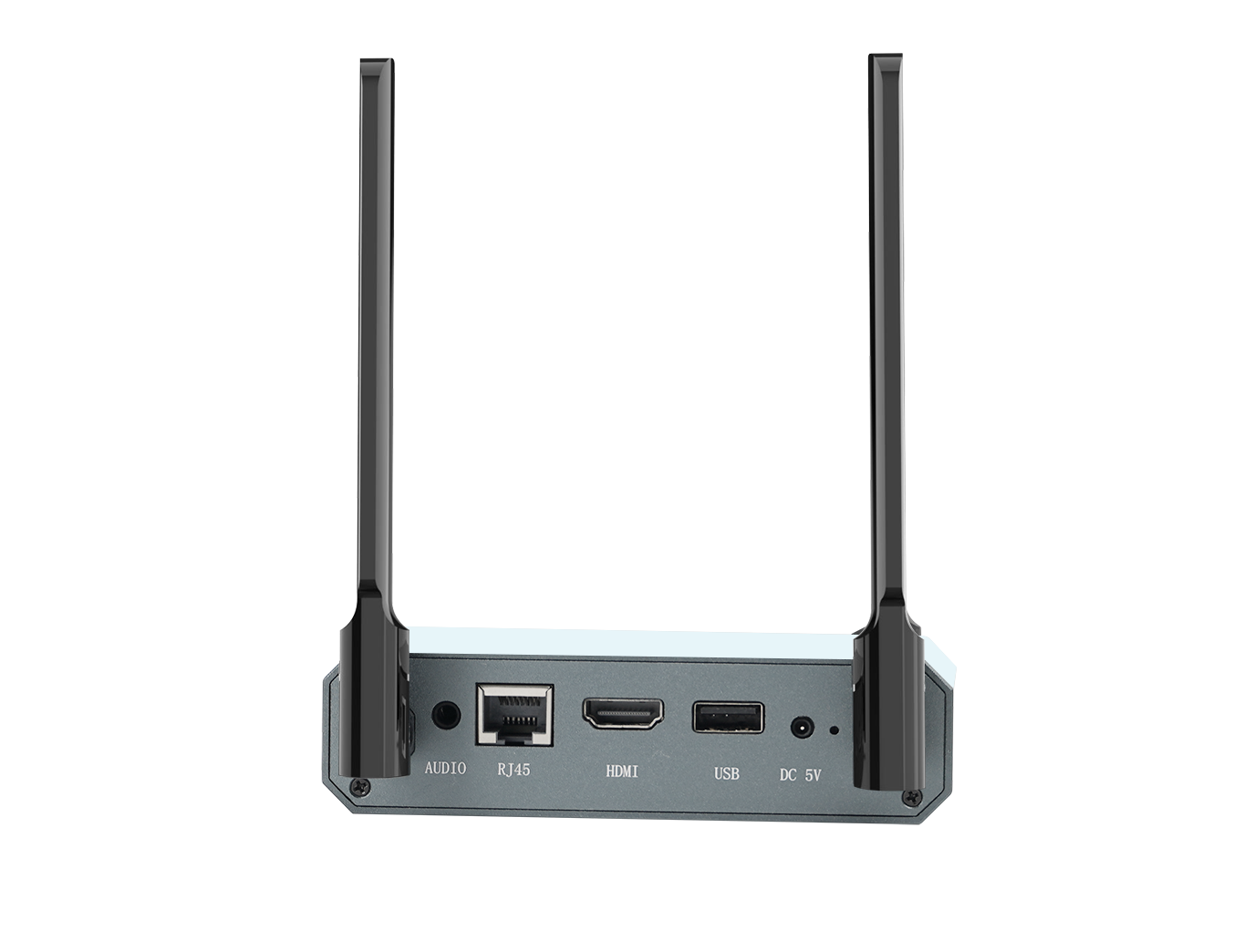
A wireless presentation system generally involves a sender, such as a laptop or mobile device, and a receiver connected to a display. The sender transmits screen content over a supported wireless method; the receiver handles the incoming content and outputs it to the display. A dedicated USB transmitter or dongle is one possible sender-side method. Software casting and built-in protocols are other methods listed across the supplied product information.
For procurement, this connection path helps locate the right question. If a dedicated dongle is not recognized, investigate host permission, insertion, and pairing. If a phone cannot cast, check whether its protocol is listed for the selected receiver. If users can connect but not all can share at once, compare the connection limit with the concurrent-stream limit. If several streams are required, include resolution and display layout in the requirement rather than specifying only a participant count.
Application checks for rooms, classrooms, and demonstrations
In a meeting room, a buyer may need employees using mixed operating systems to connect either through software or a dedicated transmitter. The relevant checks are the supported host platforms, the protocol or transmitter workflow, and whether the intended participant count is a connection count or a live-stream count. For BYOM-oriented rooms, confirm the complete workflow and any required peripheral integration rather than treating a USB-C connector alone as proof of system-level compatibility.
In a classroom or training room, several users may need to take turns presenting, while only a smaller number of sources may appear on the screen at one time. A useful acceptance scenario is to connect the expected devices, start the intended number of simultaneous streams, and test presenter changes using the display layout and resolution planned for the room. That checks both the joining process and the actual collaboration requirement.
In a showroom or professional demonstration environment, high-resolution content and quick source changes may be important. The listed PTB3219 specification includes dual HDMI outputs, split-screen layouts, and support for AirPlay, DLNA, Miracast, software casting, and hardware transmitters. Those are model-specific listed capabilities; buyers should still verify the intended display arrangement, casting method, and resolution in the proposed configuration. A specification for one receiver should not be carried over to another product in a product portfolio.
How wireless casting differs from a direct wired connection
A wired HDMI connection offers a direct physical link between a source and a display, but it requires a suitable cable path and compatible connectors at the endpoints. Wireless presentation can reduce the need to route a presentation cable to each user’s device and can support different casting methods, depending on the receiver. Its trade-off is that the buyer must validate device compatibility, protocol availability, pairing, and the intended concurrent-use limits. A wireless option is not automatically simpler in every deployment; the right choice depends on the room workflow and the devices that must be supported.
Dedicated transmitters can provide a defined connection path, while software or built-in protocols may provide alternative ways to share. Neither approach should be assumed to support every device or operating mode. A pre-deployment test with representative computers, phones, displays, and required protocols is a more useful procurement check than relying on a broad label such as plug-and-play or cross-platform.
Procurement checklist: what to document before approval
- Model scope: Name the receiver, transmitter, and any processor or matrix included in the proposed configuration.
- Connection workflow: Record how users join, whether the workflow uses a dongle, software, a public protocol, or a combination, and what troubleshooting or pairing steps apply.
- Capacity: List maximum connected devices and maximum concurrent streams as separate requirements. Add the stream resolution and screen layout expected in operation.
- Protocol proof: Obtain model-specific written confirmation for AirPlay, Miracast, Google Cast, or any other required protocol. Do not infer support from a different model’s specification.
- Document review: Match the supplied certification identifiers and supporting documents to the exact product, model, and market under consideration.
- Warranty terms: Confirm the current applicable warranty in writing for the product and transaction, including coverage and remedy.
- Acceptance test: Test with representative host devices and the planned display arrangement, including the expected simultaneous-use scenario.
Industry and buyer outlook
Product documentation in this category includes multiple ways of describing collaboration capacity: device connections, active casting streams, split-screen layouts, and resolution-specific stream counts. That distinction is directly relevant to purchasing because a single maximum number can conceal materially different operating conditions. For buyers, a more comparable specification is one that names the product, defines the capacity measure, and states the associated resolution and use mode.
Likewise, protocol lists and certification records answer different questions. Protocol confirmation helps determine whether intended source devices can share content through the proposed workflow. Certification and registration documents help buyers review the product’s documented status for a stated scope or market. Warranty documentation addresses the commercial terms applicable to the purchased product. Keeping those evidence types separate makes supplier responses easier to evaluate and reduces the risk of assuming that a claim made for one product applies to another.
Conclusion
For a wireless presentation procurement review, start with the dongle’s host permission, physical insertion, receiver restart, and re-pairing steps. Then separate how many devices may connect from how many can cast concurrently, and record stream resolution where relevant. Finally, verify AirPlay, Miracast, and Google Cast against the exact model rather than assuming uniform product-family support. The supplied identifiers WEB260701013RCC, N6342-24, and SD05832-24 should be reviewed with their underlying documents and product scope; warranty and CE questions also require current, product-specific documentation.
For a product-family reference, see the tranScreen catalog. Confirm current model specifications and applicable documents before procurement.
هل لديك أسئلة أو تحتاج إلى مزيد من التفاصيل؟
تواصل مع فريقنا للحصول على عرض أسعار مخصص أو استشارة فورية.
طلب عرض أسعار
املأ النموذج أدناه وسيتواصل معك فريقنا بعرض مقترح مخصص.
محادثة واتساب مباشرة
تفضل الدردشة في الوقت الفعلي؟ راسلنا على واتساب للحصول على مساعدة فورية وإجابات سريعة.
- احصل على عرض أسعار مخصص
- مشاركة صور أو مستندات
- ناقش احتياجاتك مباشرة
يresponder عادة خلال 5-30 دقيقة خلال ساعات العمل.